Change a background in ArtCraft: choose your workflow.
Understand the official editing route, prepare a clear instruction, and compare our separate Image Lab example.
Choose the control your task needs
If your original logo, lettering or subject pixels must remain unchanged, start with the official masked-edit workflow or a conventional editor. Our separate Image Lab regenerates the whole image and is better treated as a way to explore a variation.
A result is usable only after you check it
- The intended background has changed.
- The subject has the right silhouette, color and proportions.
- Lettering, logos, handles and small details are still acceptable.
- Edges and shadows look natural at full size.
If a critical detail fails, do not use the image as an accurate product photo. A delivered file alone is not a successful edit.
Common problems and what to try next
The subject changed
Describe one change and name the details to keep. If exact preservation matters, choose a masked or conventional edit rather than paying for repeated whole-image generations.
The edge or shadow looks wrong
Start with a sharper source and describe the background and light together. Inspect handles and transparent areas; another request is a paid variation, not a guaranteed fix.
The task is still processing
Check the original task in your history. Do not submit it again while its status is uncertain. Report the task reference if it needs help.
01 / Choose the image and the change
Start with a clear image you own or have permission to use. Decide what should stay (the subject, shape, or lettering) and what should change (the backdrop). Check clipped edges and compression before spending credits. Exact logos and identity need careful review.
02 / Use the official ArtCraft tools when you need local control
The official web studio lists Background Change and Image tools. ArtCraft’s Edit Image FAQ describes painting a mask, writing a brief instruction, and generating a targeted edit. For precise areas, read that official workflow. This is a summary of public documentation, not a tested walkthrough of every logged-in control.
Official ArtCraft editing instructions · Third-party website: getartcraft.com03 / Write a change you can evaluate
Name the subject, say what should change, then describe the finish. For example: keep the green tote bag, replace the backdrop with pale terracotta, and add a soft shadow. A preserve instruction expresses your intention; it does not guarantee unchanged pixels. The comparison below was tested in our separate Seedream Image Lab, not in the official ArtCraft app.
04 / Inspect the new image before using it
Compare the result with your source at full size. Check handles, edges, lettering, colors, and shadows. If a detail changed, revise only that instruction or use a conventional editor. A voluntarily requested new variation uses points again in Image Lab.
05 / Optional: prepare the same request in our Image Lab
Our Lab is a separate service for a complete regenerated image, using Seedream through KIE. The template below carries into the workspace; replace the tote bag with your own subject. One input uses 1 point, while 2–4 references use 2. During this preview only specifically approved test accounts can generate. Guides and examples remain free.
Prefer the official app? Open ArtCraft Web · Third-party website: app.getartcraft.comActual test results and instructions
Own AI-generated source image and returned Seedream test outputs. These are examples, not a promise of identical results.
New background
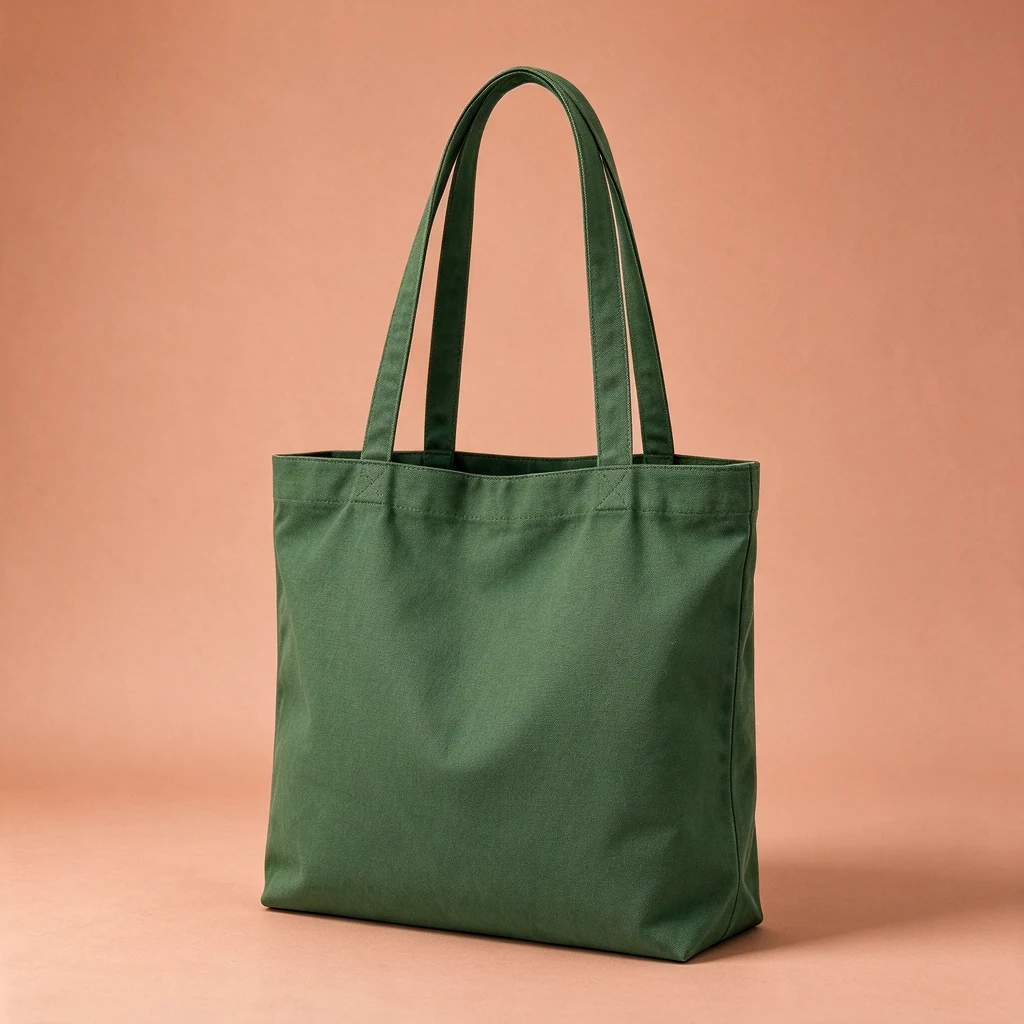
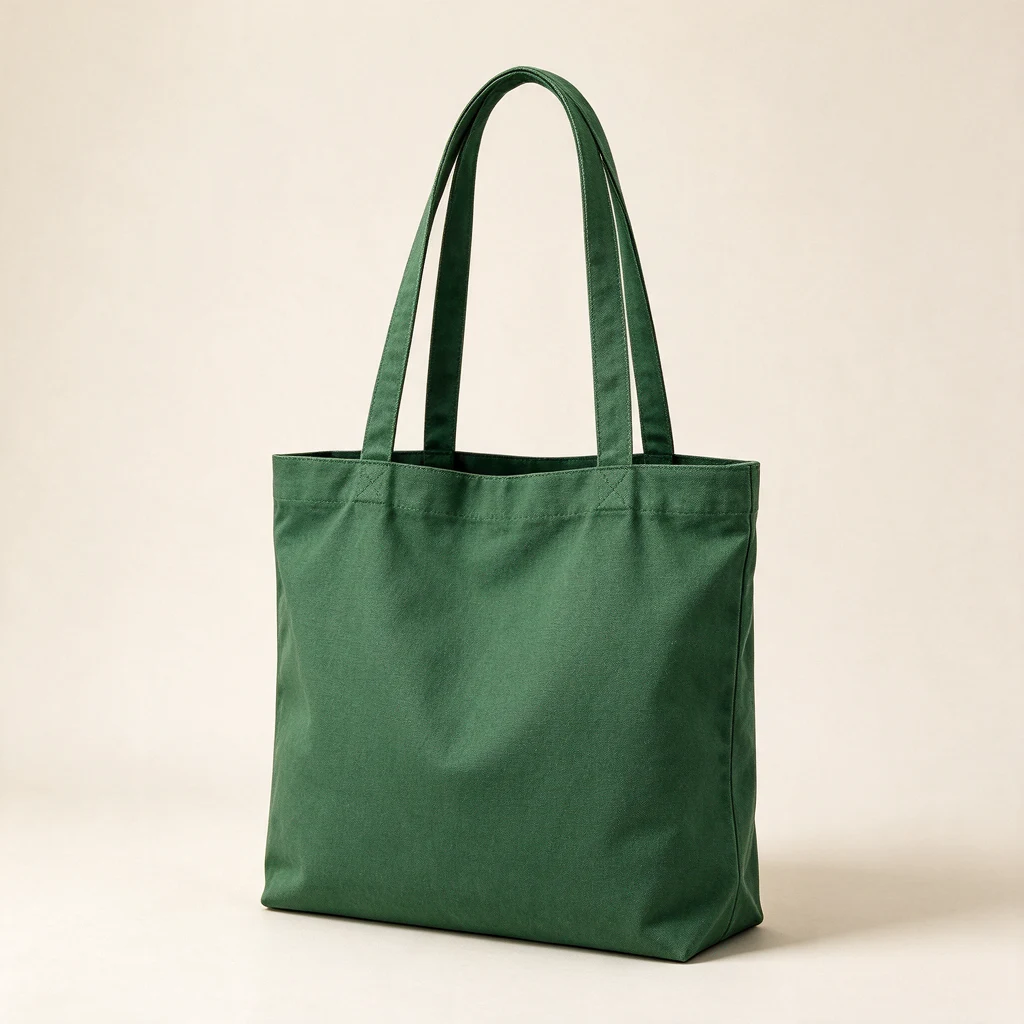 BeforeAfter
The backdrop changed. Inspect the edges, texture, and shadows before use.
Keep the tote bag shape, handles, fabric weave and green color unchanged. Change ONLY the background to a warm pale terracotta studio backdrop with a soft natural shadow. No text or extra objects.Prepare this edit in our independent Lab →
See what changed beyond the background.
Two licensed photographs, two delivered background edits. Inspect the original and result before deciding whether this workflow fits your photo.
A real coffee mug photo
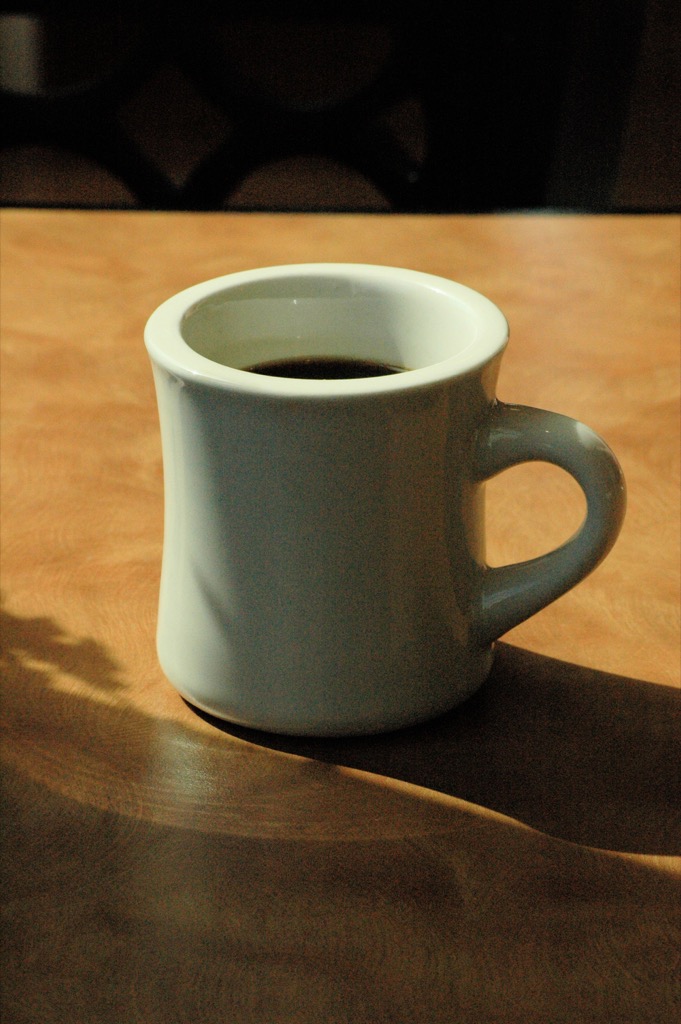
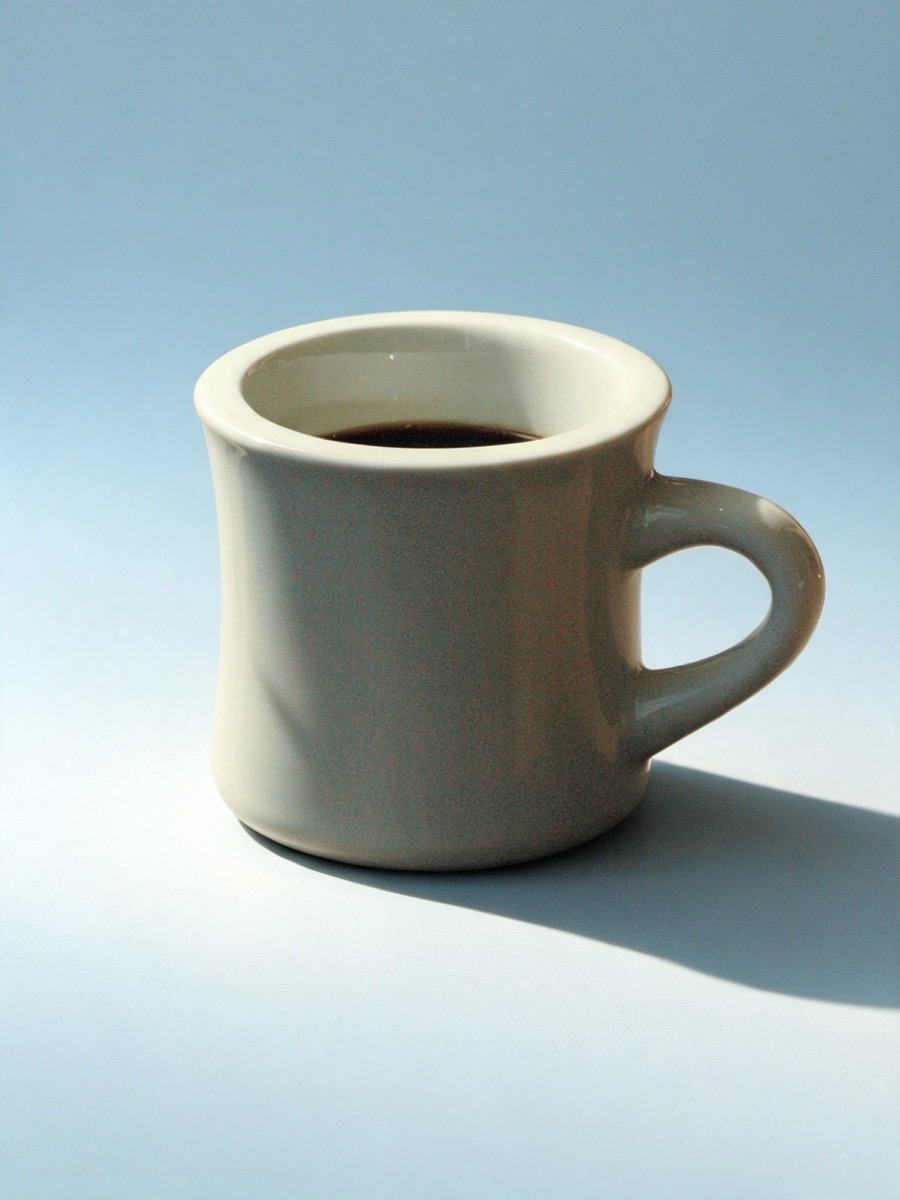
The wooden table became a blue studio background. The cup is recognizable, but the lighting, framing and fine rim details also changed.
Background variation · inspect details · no pixel-preservation guaranteeExact test instruction
Keep the ceramic coffee mug, its handle, rim, coffee and original color as unchanged as possible. Change ONLY the surrounding background to a pale warm blue studio setting with a soft natural shadow. Do not add objects or text. Do not alter the subject details.
Source: Adam S. Keck · CC BY-SA 4.0. Original resized; background regenerated. Both displayed derivatives are available under CC BY-SA 4.0. No affiliation or endorsement.
Glass and fine surface texture
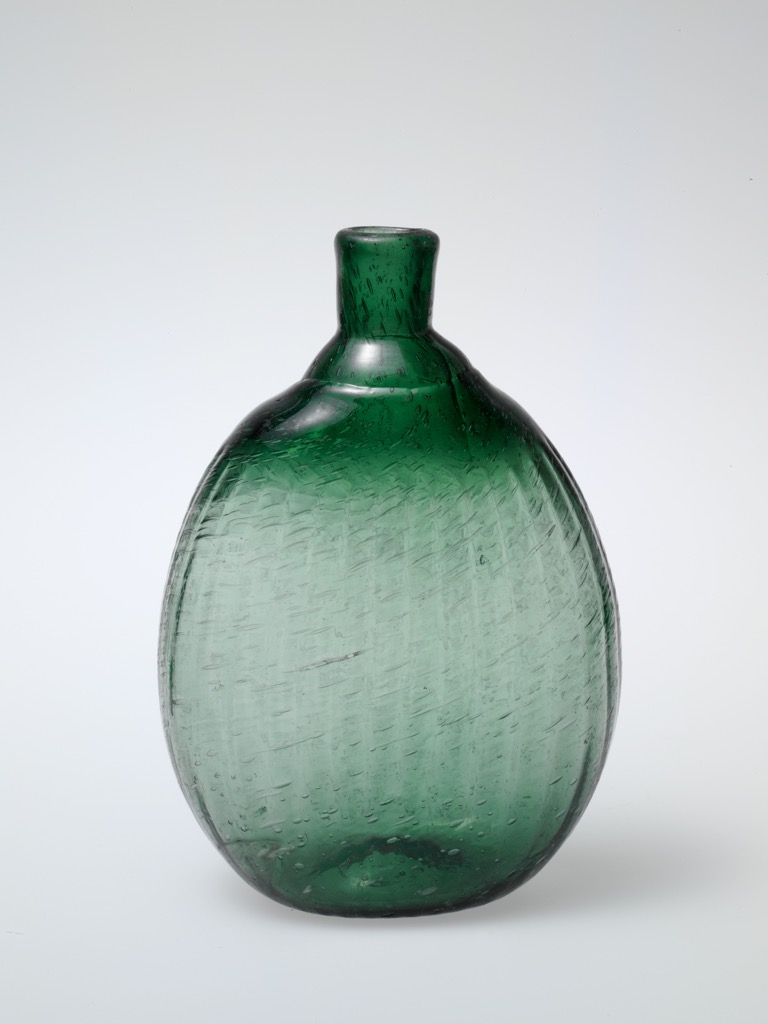
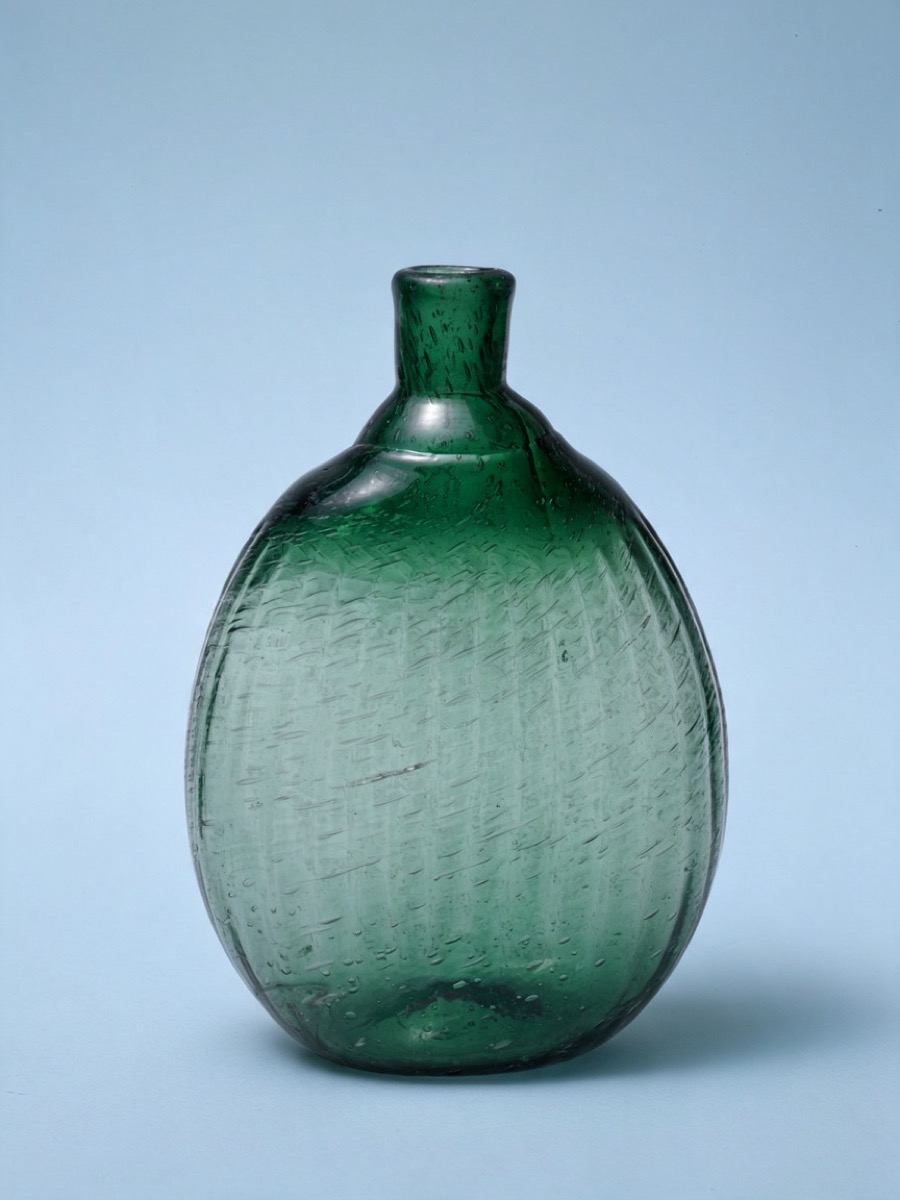
The background changed and the glass silhouette remains recognizable. Fine surface marks were redrawn. This result is not an exact record of the original object.
Background variation · inspect details · no pixel-preservation guaranteeExact test instruction
Keep the green glass bottle, its exact outline, narrow neck, bubbles, green color and surface texture as unchanged as possible. Change ONLY the surrounding background to a pale warm blue studio setting with a soft natural shadow. Do not add objects or text. Do not alter the subject details.
Source: The Metropolitan Museum of Art · CC0 1.0. Original resized; background regenerated. Source photograph released under CC0. No affiliation or endorsement.
These tests used 1K output and one request per photograph. They do not establish a general success rate for logos, lettering, faces or 2K images. If exact product details matter, use a masked or conventional editor.
Continue with a related guide
Want to prepare an edit in our independent Image Lab?
Open our Image Lab